Company Branding
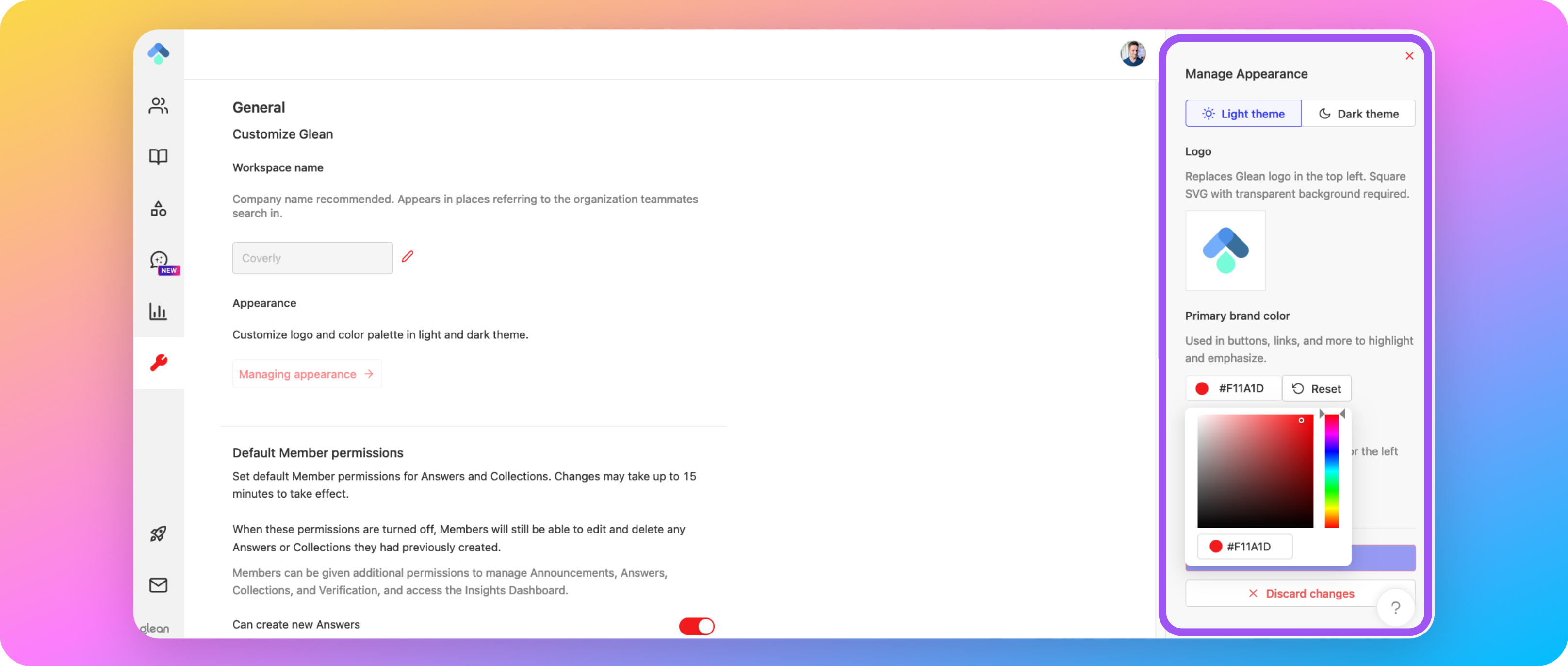
You can personalize the Glean UI to match your company's branding by adjusting:
- The company name displayed throughout the UI
- Logo
- Color theme
Info
You must be assigned the Admin or Super Admin roles to be able to customize the workspace appearance.
Workspace Name
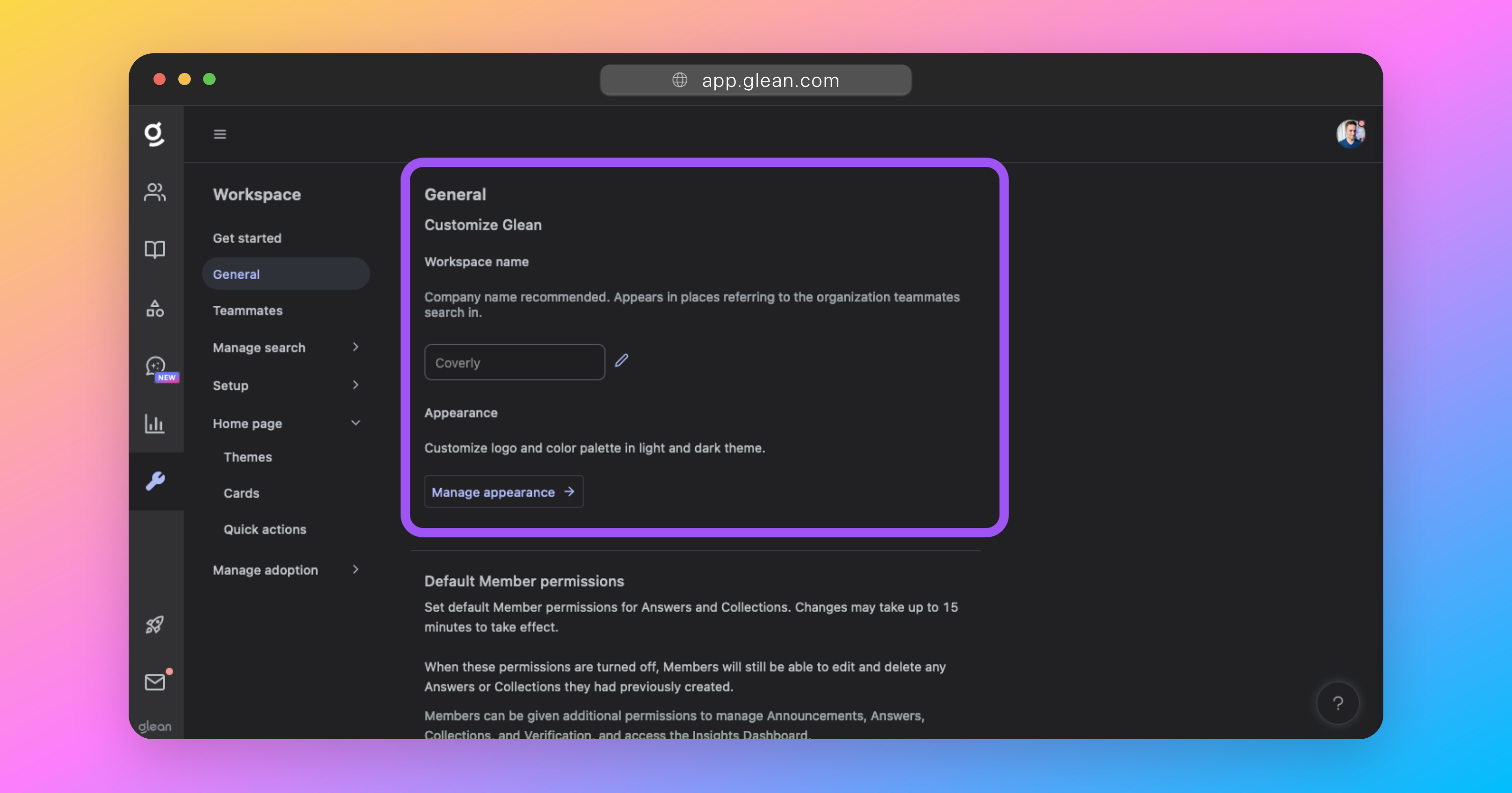
Workspace Settings > General > Workspace name
This is the company name that appears throughout the Glean UI and in placeholder text. For example, "Search for anything at company_name".
This will be set to the name of your company by default. If you require it to be changed, you can do so under Workspace Settings > General > Workspace name.
Glean recommends setting this to a shorthand version of your company name, for example: "MCN" instead of "My Company Name LLC"
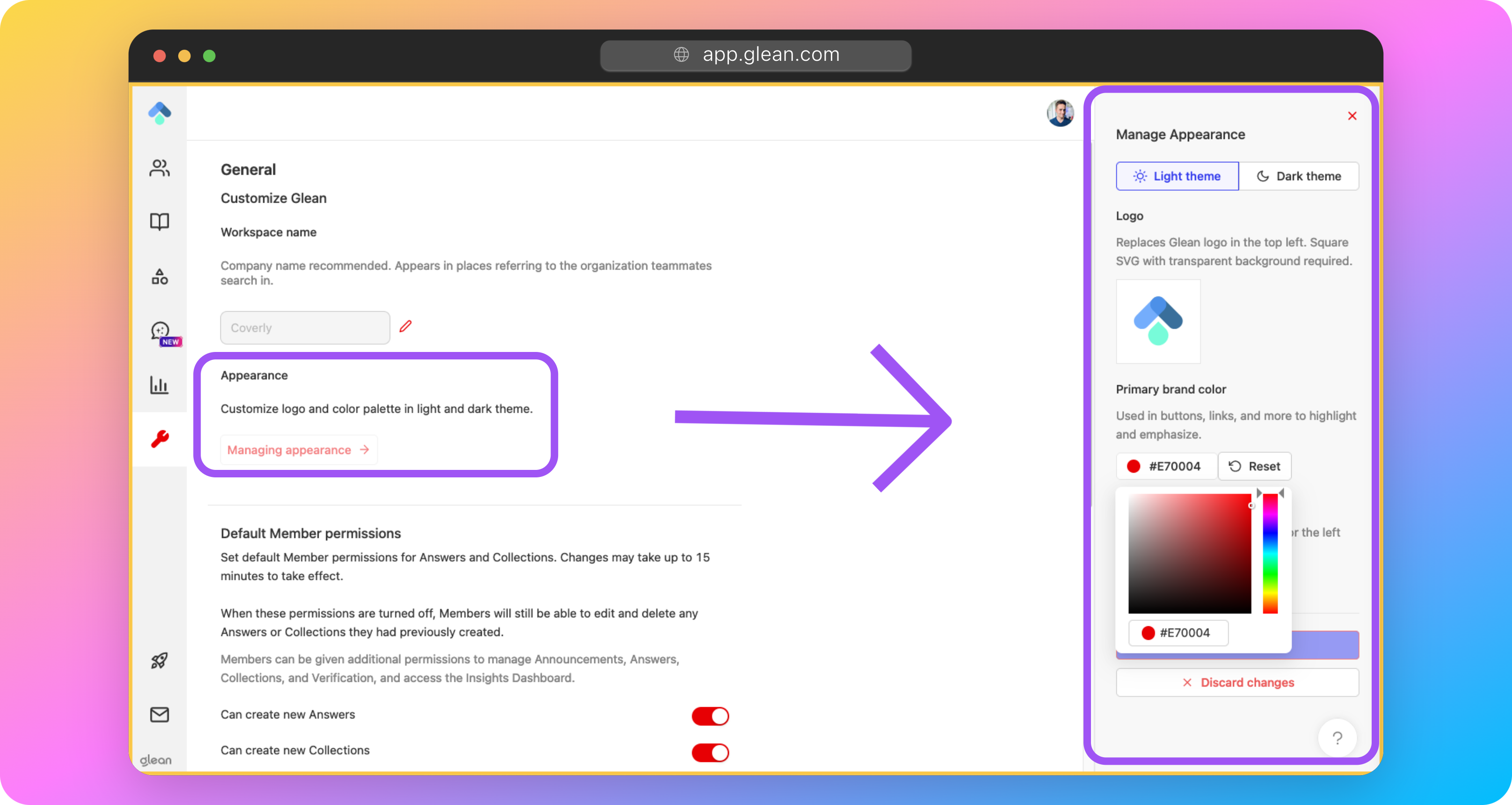
Appearance Settings
Workspace Settings > General > Manage appearance
The appearance menu includes all the customization settings that impact the look and feel of Glean throughout the application. These settings will apply to all users at a company.
Logo
The logo will replace the Glean logo in the upper left-hand corner of the navigation sidebar. It must meet the following criteria:
- Square aspect ratio
- Transparent background
- SVG format
If used, custom logos must be uploaded for both light mode and dark mode.
Primary Brand Color
The primary brand color is the clearest way to bring your brand into a user's entire Glean experience.
It is used for links, monocolored icons, and a wide variety of other visual components throughout Glean.
Info
You are not able to explicitly set the colors used for the Dark theme. These are derived automatically from the primary color set for the Light theme.
Navigation Color
This color is the background for the left-hand navigation menu, which appears on all Glean pages except for the new tab page.
Warning
Glean will display an error if the color combinations selected are too low in contrast for sufficient accessibility.
Info
You are not able to explicitly set the colors used for the Dark theme. These are derived automatically from the primary color set for the Light theme.