Box Connector Configuration
Requirements
- The user setting up this connector must be a Box Admin.
- A user with the Co-Admin role cannot set up the Box connector. Doing so will cause the configuration and crawling to fail.
- The username of the user setting up this connection must be the same as the one that authorizes the Glean app within Box. If the user is different, the OAuth exchange will fail.
- If you have IP restrictions enabled for your Box tenant, you must allowlist the Glean static IPs for your tenant or else authorization of the Glean Box app will fail.
- These IPs are different for every Glean customer. Please consult your Glean engineer or Glean support for more information.
- If you are a Box Verified Enterprise customer, you must notify Glean of the subdomain of your Box environment before completing setup.
- Your subdomain will be of the format
companyname.ent.box.cominstead of the standardapp.box.com - If you do not notify Glean of your enterprise subdomain, your search results will point to
app.box.comand will be invalid.
- Your subdomain will be of the format
Notification Suppression
- When Glean crawls content in your Box environment, it does so from the perspective of the users that have access to each piece of content.
- Box logs all actions taken via the API for OAuth applications like Glean, and the default action is to send email notifications to each user whose file was accessed.
- You must request that Box support suppress notifications from the Glean App Center app / Glean Client ID
b7m82o7neyelnzc8sbtuq5hctfv0qn02. - Glean's API calls include a header that asks Box to suppress notifications to users, but this header requires configuration by Box Support for it to be honored.
More information: Suppress Notifications (developer.box.com)
Warning
Failure to suppress notifications may result in email notifications across the whole Box organization for every file crawled by Glean.
Process
1 - Add the Box Connector
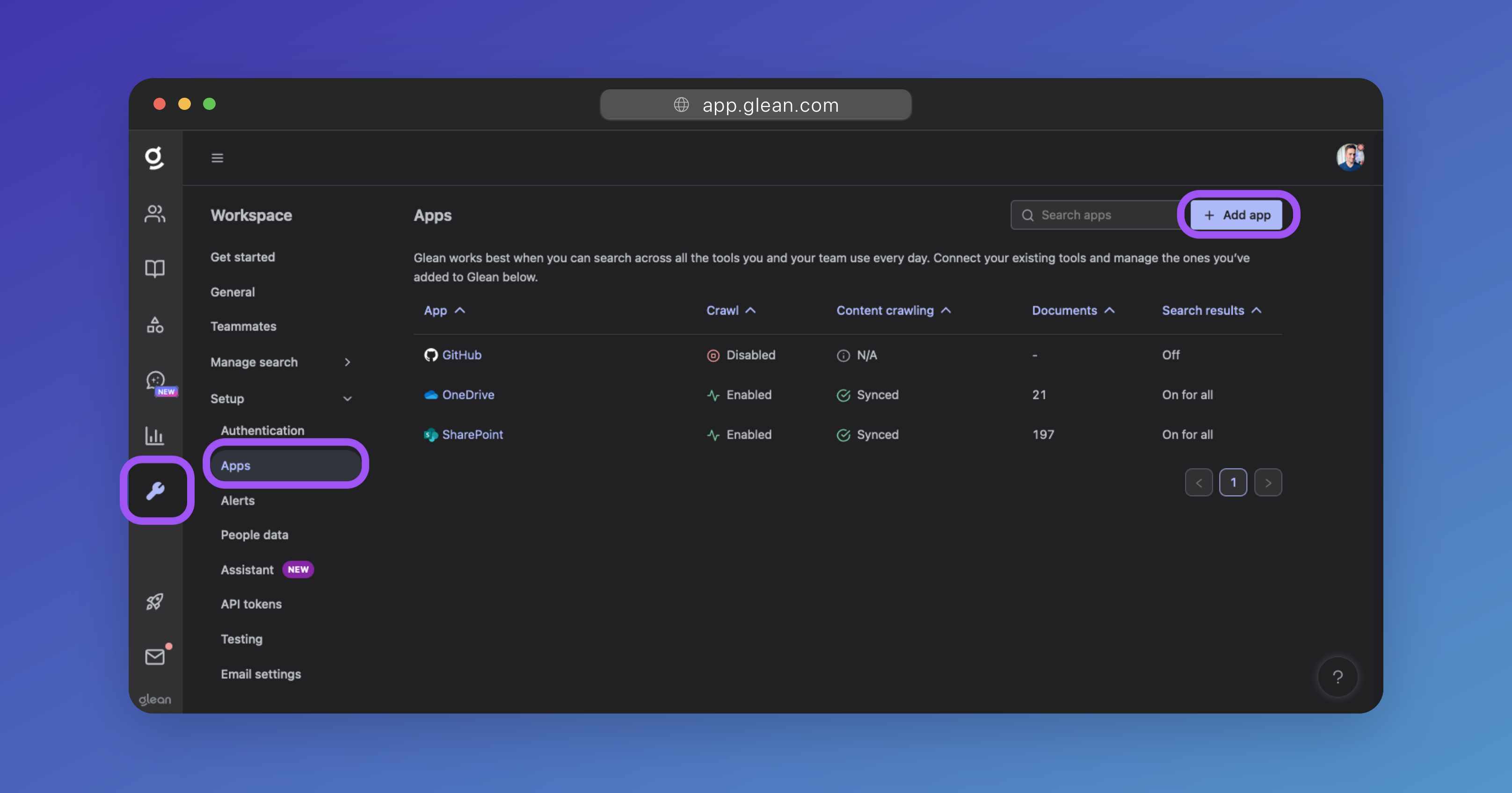
In the Glean Admin UI, navigate to Workspace Settings > Setup > Apps, and then click the + Add App button. When prompted, select Box from the list of apps (or click here).
2 - Create the Authorization Link
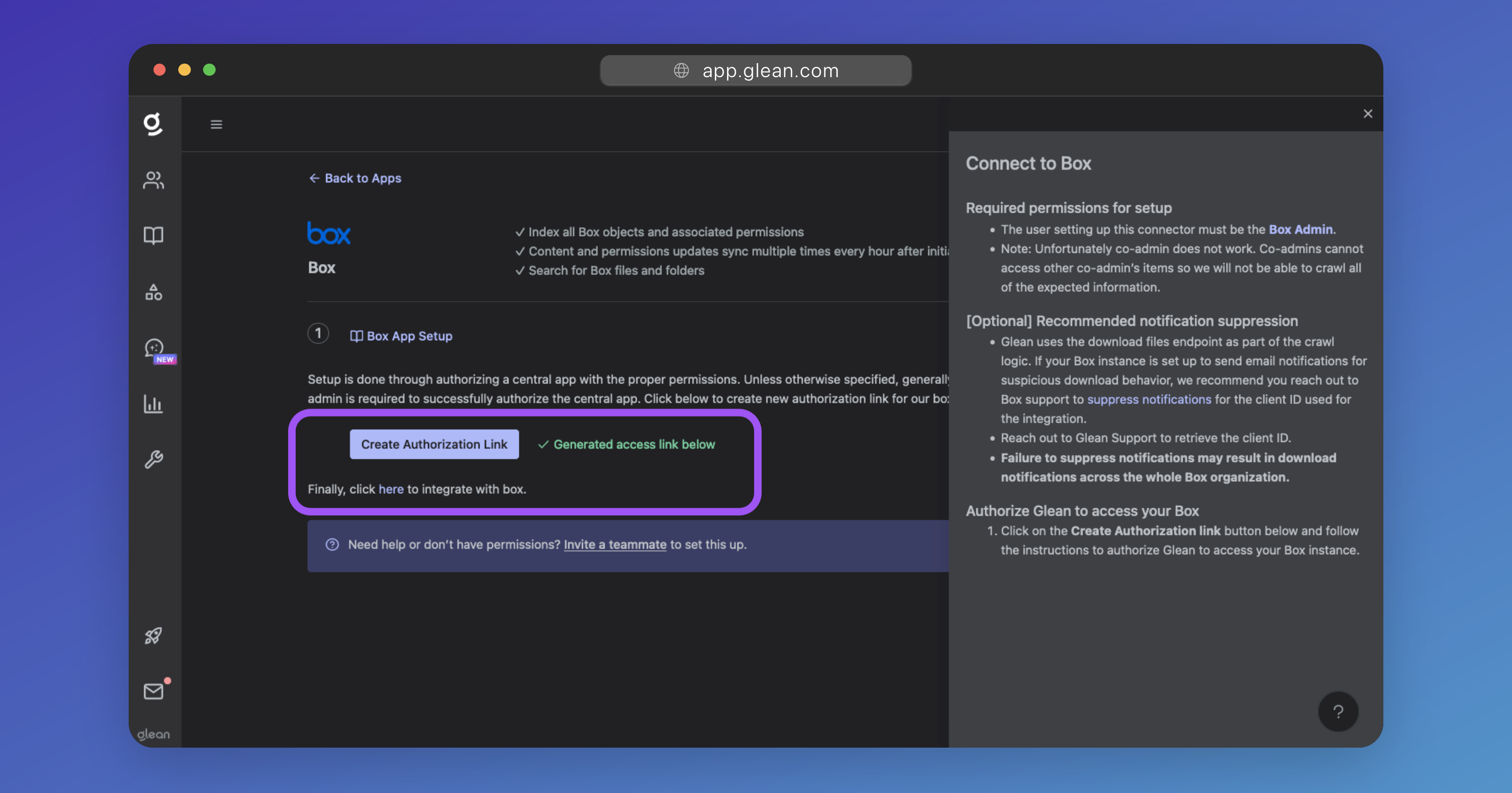
Click the Create Authorization Link.
When the link is created, click it to be taken to Box. You will be prompted to sign in to Box if you are not already.
Error prevention
The username/email of the admin signing in to Box to authorize Glean must match the username/email of the user signed in to Glean or the OAuth exchange will fail validation.
3 - Authorize Glean
You will be prompted to authorize the Glean to access your Box instance.
Click Grant access to Box.
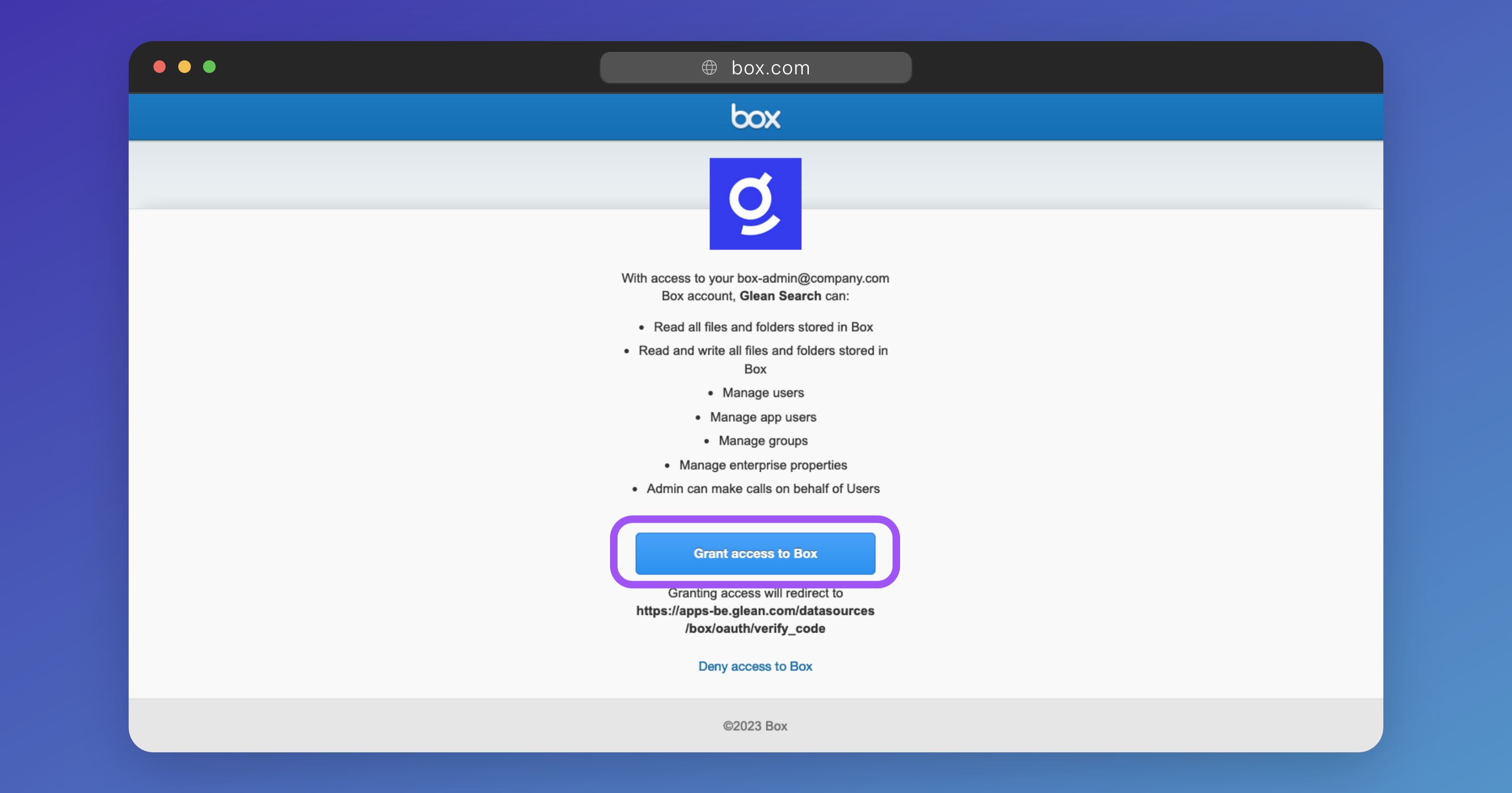
You will be re-directed back to the Glean Admin UI. Your Box instance is now connected to Glean.
4 - (Optional) Apply Crawling Restrictions
Glean will fetch all data in Box by default. You can set restrictions in Glean to prevent data from showing in search by:
- Excluding certain content from being crawled.
- Set only specific content to be crawled.
You should apply crawling restrictions (if required) before starting the crawl in the step below.
More information: Box - Restricting Content
5 - Start Crawling
Click on the Overview tab, and when prompted, the Start Crawling button to begin indexing your organization's Box content.
Success
Your Box instance is now connected to Glean, and Glean is now indexing your organization's Box content.