Configure SharePoint using Sites.Selected
Stop! Using this method will severely degrade the user experience!
Using the Sites.Selected permission prevents Glean from obtaining activity data. This means:
- Search quality and ranking will be significantly degraded.
- Updates will only occur once every 24 hours instead of as content is added/changed in SharePoint.
Additionally, you must explicitly grant Sites.Selected and FullControl permissions for each new site that you wish to add.
Glean strongly recommends that companies do not leverage this method, and instead use the standard SharePoint configuration.
More information: Permission Alternatives.
These instructions leverage a limited Graph API permission scope via Sites.Selected. This allows Glean to be granted read access only to explicitly specified SharePoint site collections and is used in place of the Sites.Read.all and Files.Read.All permissions.
Please ensure you have reviewed the Permission Alternatives document before proceeding.
Heads Up!
- If you do not have concerns with the
Sites.Read.allandFiles.Read.Allpermissions, you should NOT follow this document. Instead, follow standard SharePoint configuration instructions. - If your concern is only with the
FullControlpermission for the SharePoint REST API, you should follow the Configure SharePoint using Site-specifc FullControl instructions instead.
Requirements
- The user setting up this connector must be the Global Admin role.
- A list of the SharePoint site URLs that are in scope for
Sites.Selected. - PowerShell 7.2 (with the SharePoint PnP.PowerShell module, v2.3.0+, installed), OR a method of submitting API calls (such as cURL or Postman).
- Notify Glean that you will be using
Sites.Selectedso that your deployment's SharePoint crawler can be configured correctly.
Process
1 - Create a new App Registration
-
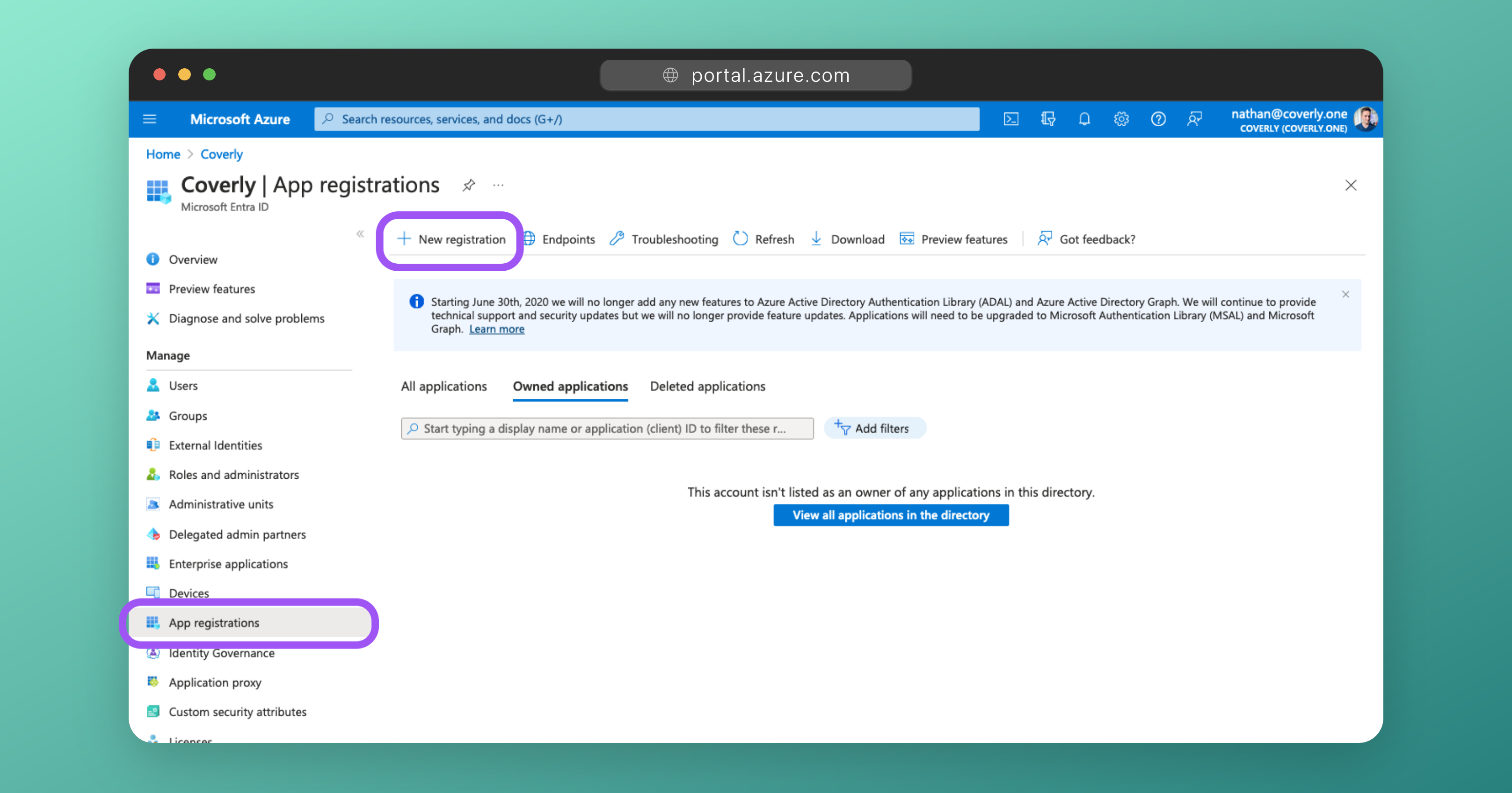
Sign into the Azure portal. Select Microsoft Entra ID, then App registrations > New registration.
-
Create a new App Registration with the following details and then click Register:
Field Value Name Glean SharePoint Crawler 1(can be whatever you like)Supported account types Accounts in this organizational directory only (Single tenant) Redirect URI (Leave this field blank) 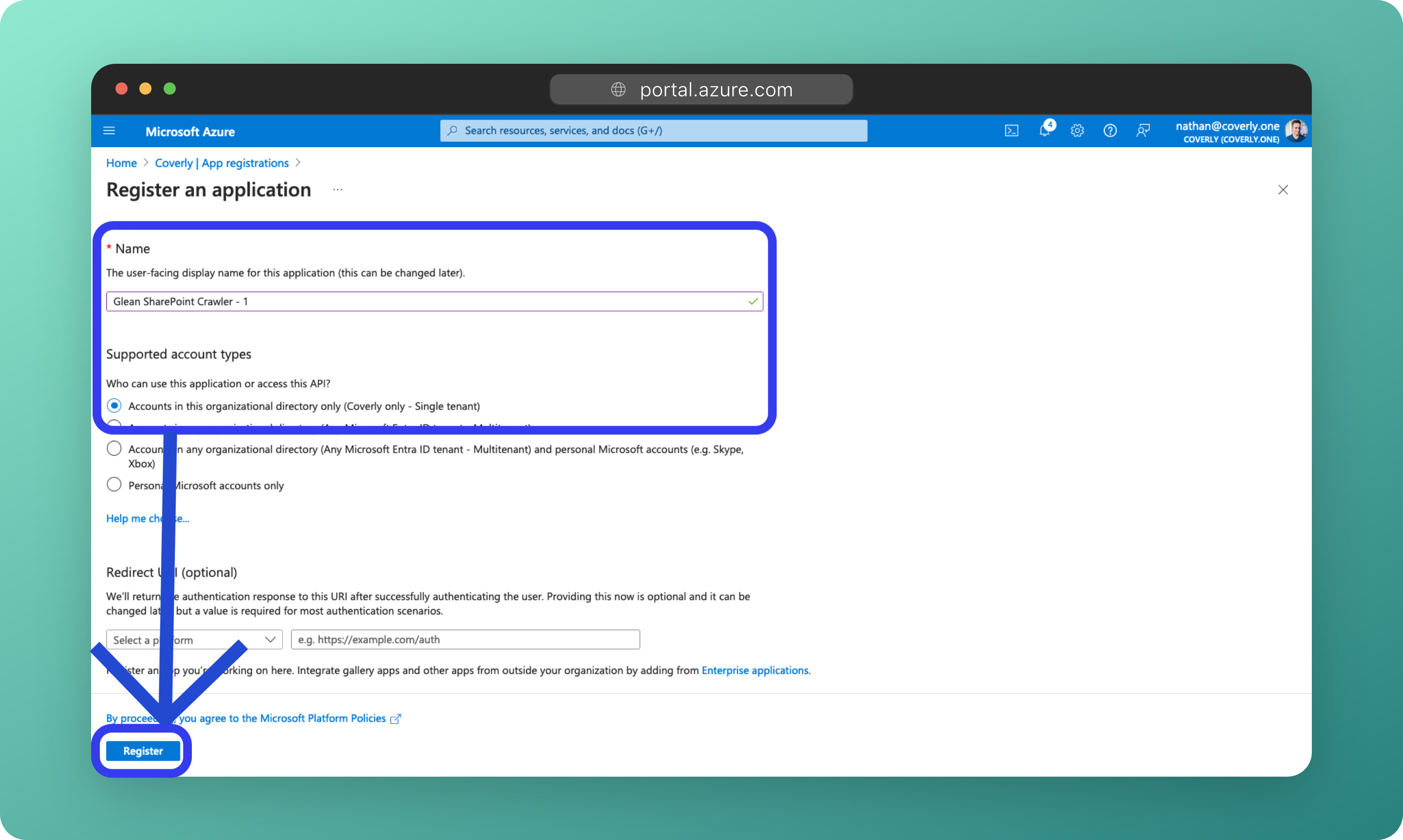
2 - Configure Graph API Permissions
-
On the left side navigation on the overview page, click on =API Permissions.
-
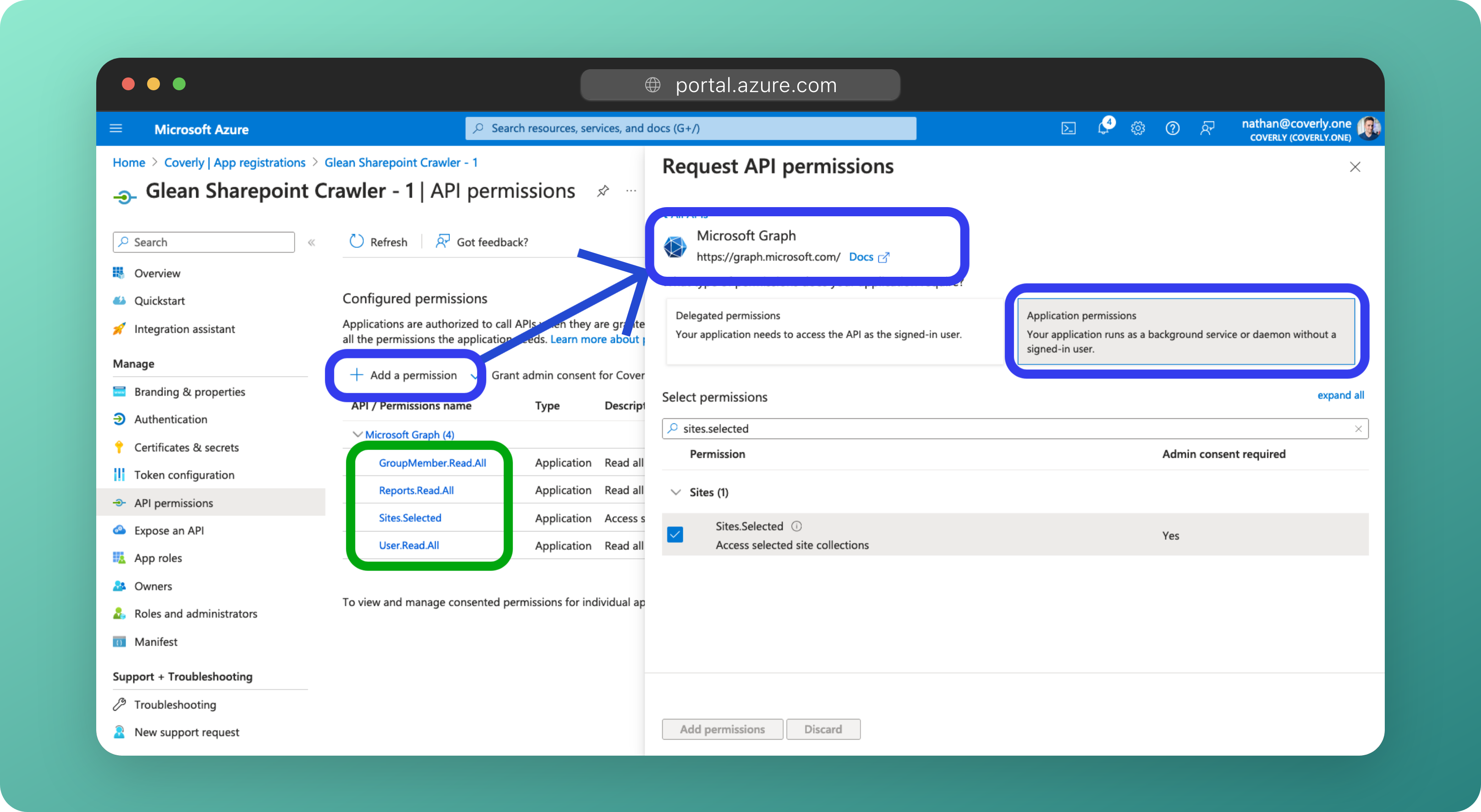
Click Add a permission and select Microsoft Graph. Choose Application permissions and add the following as Application permissions:
Permission Detail User.Read.AllLookup users within the directory (used for permissions) GroupMember.Read.AllGet the members of a group (used for permissions) Sites.SelectedProvide read access to selected site collections Reports.Read.AllUsed for ranking signals Error prevention
All permissions must be applied as Application permissions.
If you use Delegated permissions, the connector will not be able to fetch content and the crawling will fail!
Error prevention
Make sure that you have applied all of the permissions listed above. If a permission is missing, crawling will fail!
3 - Approve Permissions
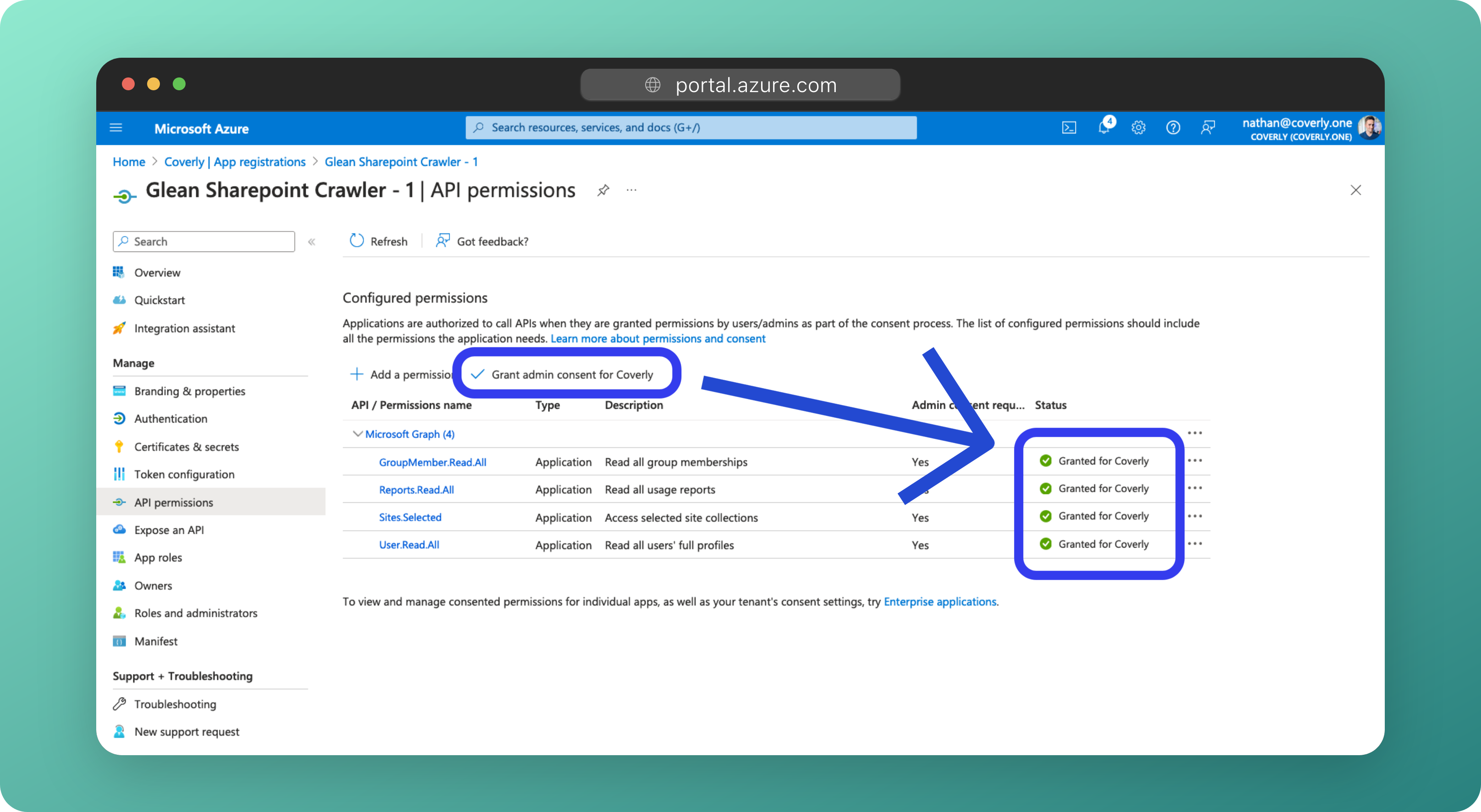
As the above permissions use Application permissions, they must be approved (granted consent) by a Global, Application, or Cloud Application Administrator.
-
Ensure you are signed into Azure as a Global, Application, or Cloud Application Administrator.
-
Navigate to the App Registrations > Glean SharePoint > API Permissions.
-
Click the Grant admin consent for [company] button, followed by Yes to grant admin consent for these permissions.
4 - Generate a Secret
-
From the left sidebar, click on Certificates & secrets, then New client secret.
-
Enter a description, eg:
Glean SharePoint Secret, select 24 months for expiry time, and click Add.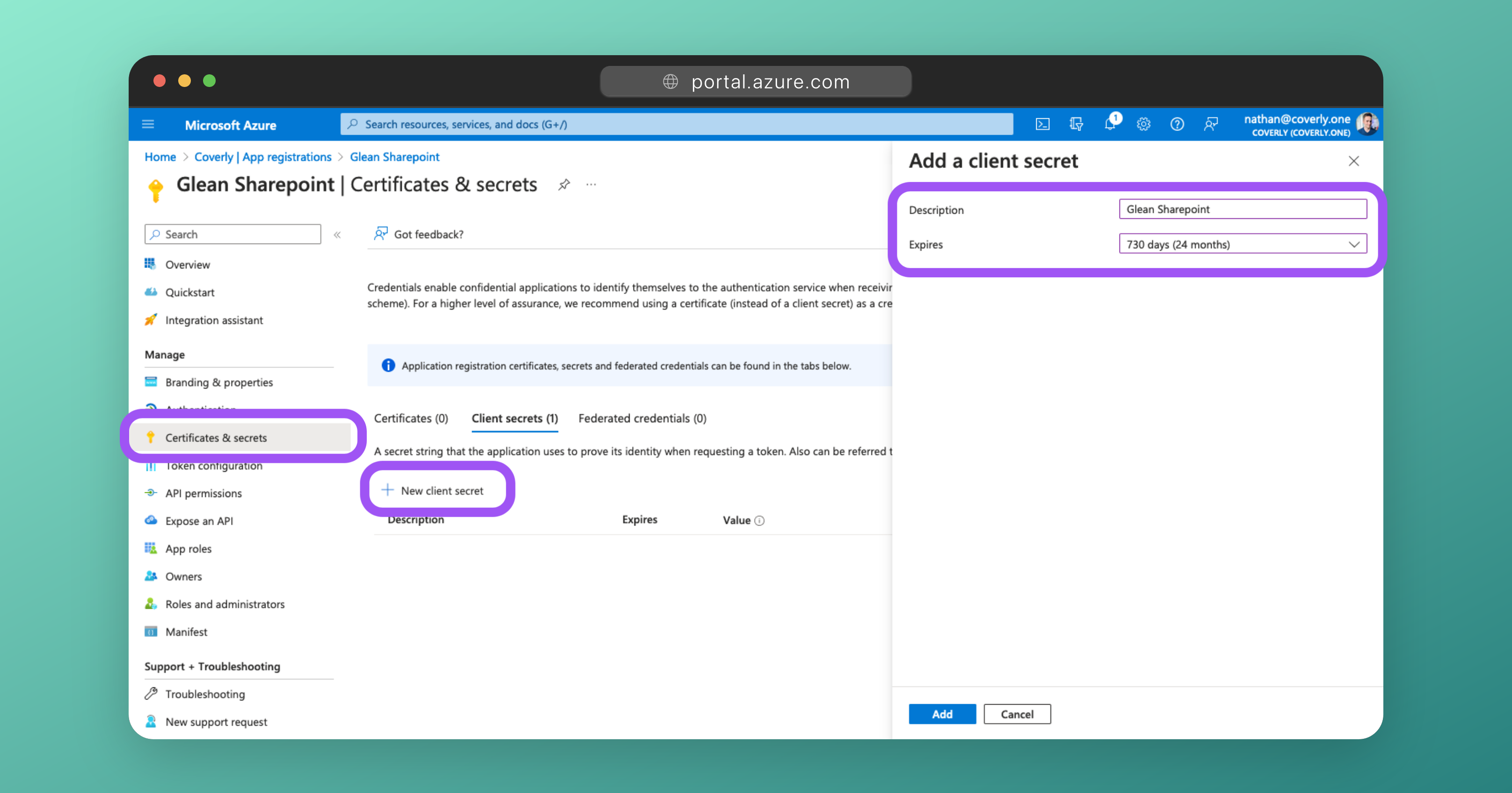
-
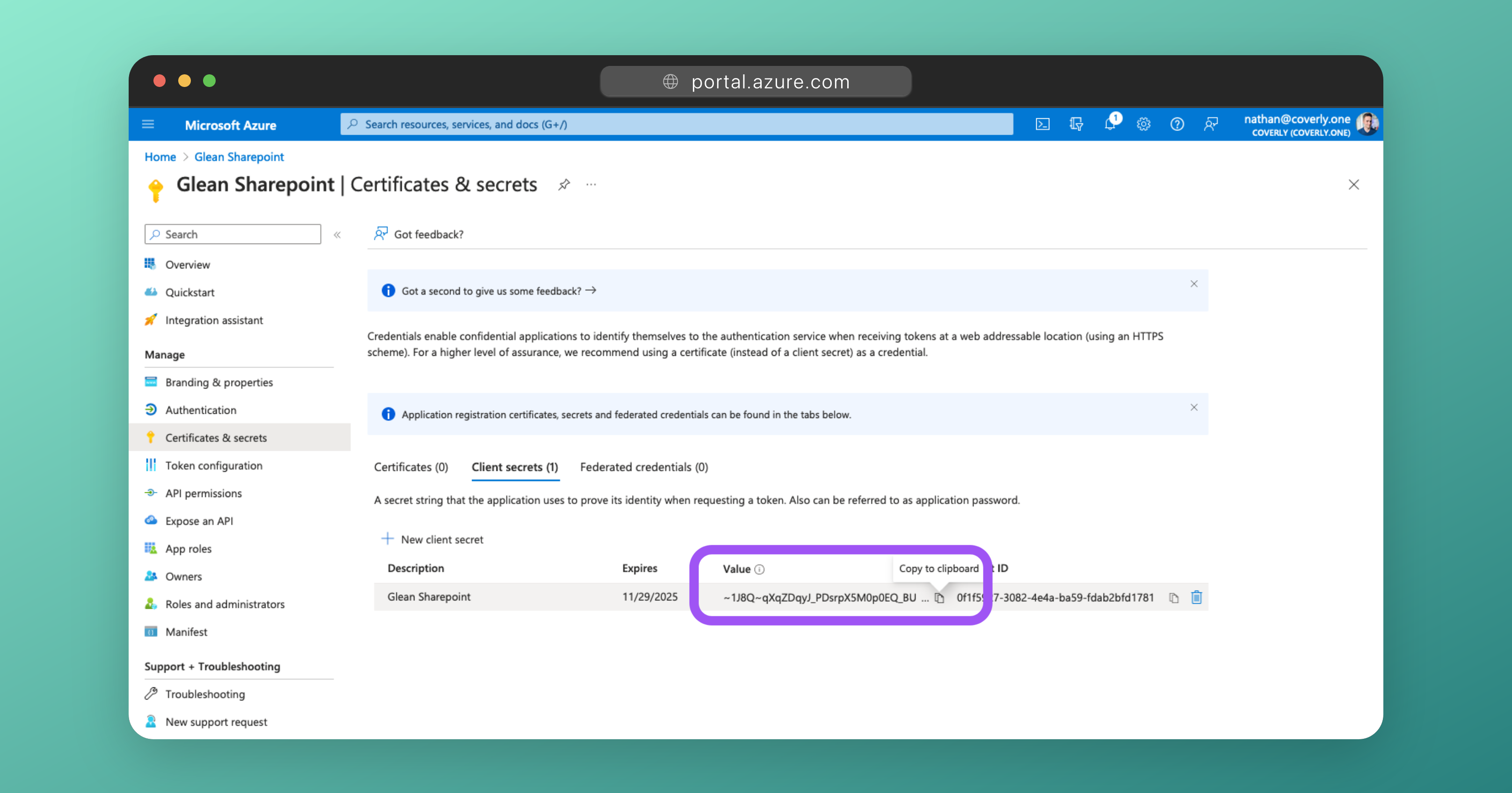
Under Client secrets, copy the Value (not the Secret ID) generated and enter it into the Glean Admin UI as the Client secret. The value will only be shown once.
5 - Copy the Application & Directory IDs
-
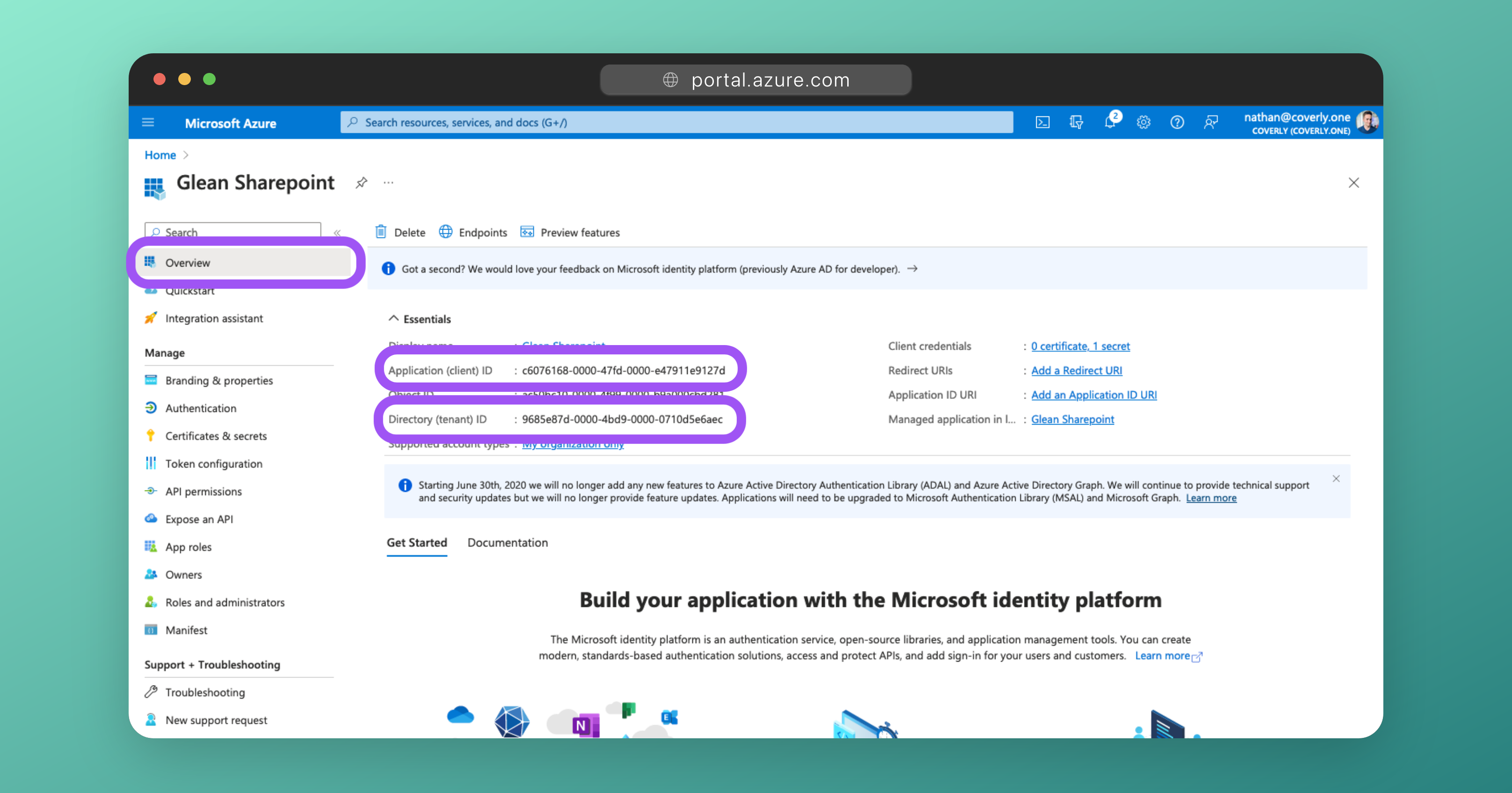
From the left sidebar, click on Overview.
-
Copy the values for Application (client) ID and Directory (tenant) ID. Enter these into the Glean Admin UI where indicated.
6 - Populate Credentials in Glean
-
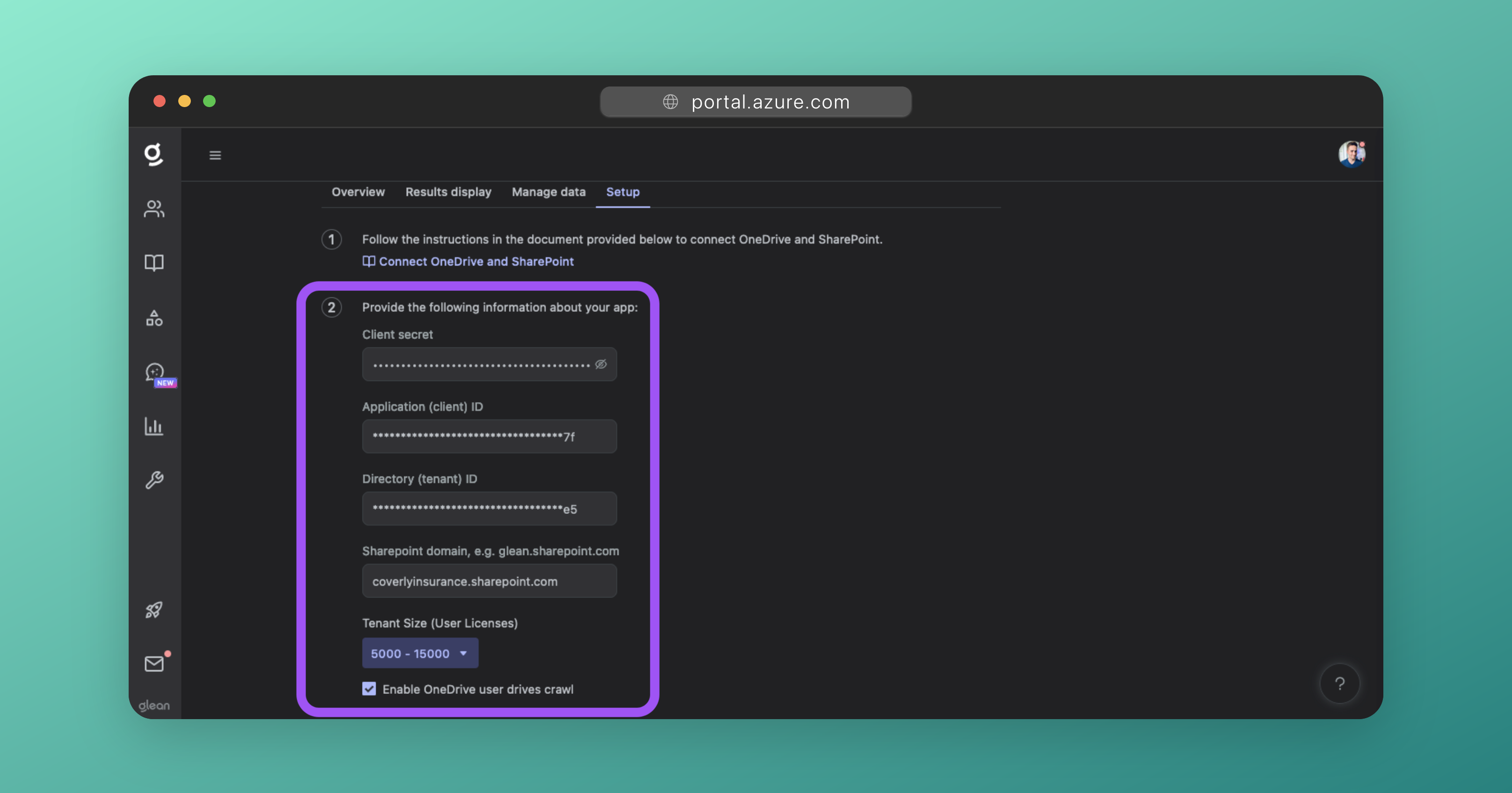
Ensure that the Client secret, Application (client) ID, and Directory (tenant) ID are populated in the Glean Admin UI.
-
Enter your SharePoint domain in Glean. Your SharePoint domain will be of the form
company.sharepoint.com. Ensure the full domain is entered. -
Set Tenant Size to the correct value based on the number of employees that your company has.
Warning
Tenant size helps Glean scale the crawler for your SharePoint & OneDrive instances correctly. Entering an incorrect size will cause your crawl rate to be slow.
-
Check the Enable OneDrive user drives crawl option to crawl OneDrive in addition to SharePoint.
7 - Add Additional Apps
SharePoint and OneDrive are often the largest sources of content for most organizations, however, the Microsoft Graph API tends to have a lower rate limit which is not ideal for crawling large amounts of content quickly.
To increase crawl speeds, you can repeat the steps above and create multiple "Glean SharePoint" App Registrations in Azure AD/Entra ID with the same permissions. When provided with the Application IDs and Client Secrets for these additional apps, Glean can utilize them in parallel to speed up the rate at which your SharePoint and OneDrive content is crawled.
Tip
Glean strongly recommends that you configure between 3-5 additional applications, depending on the size of your organization.
-
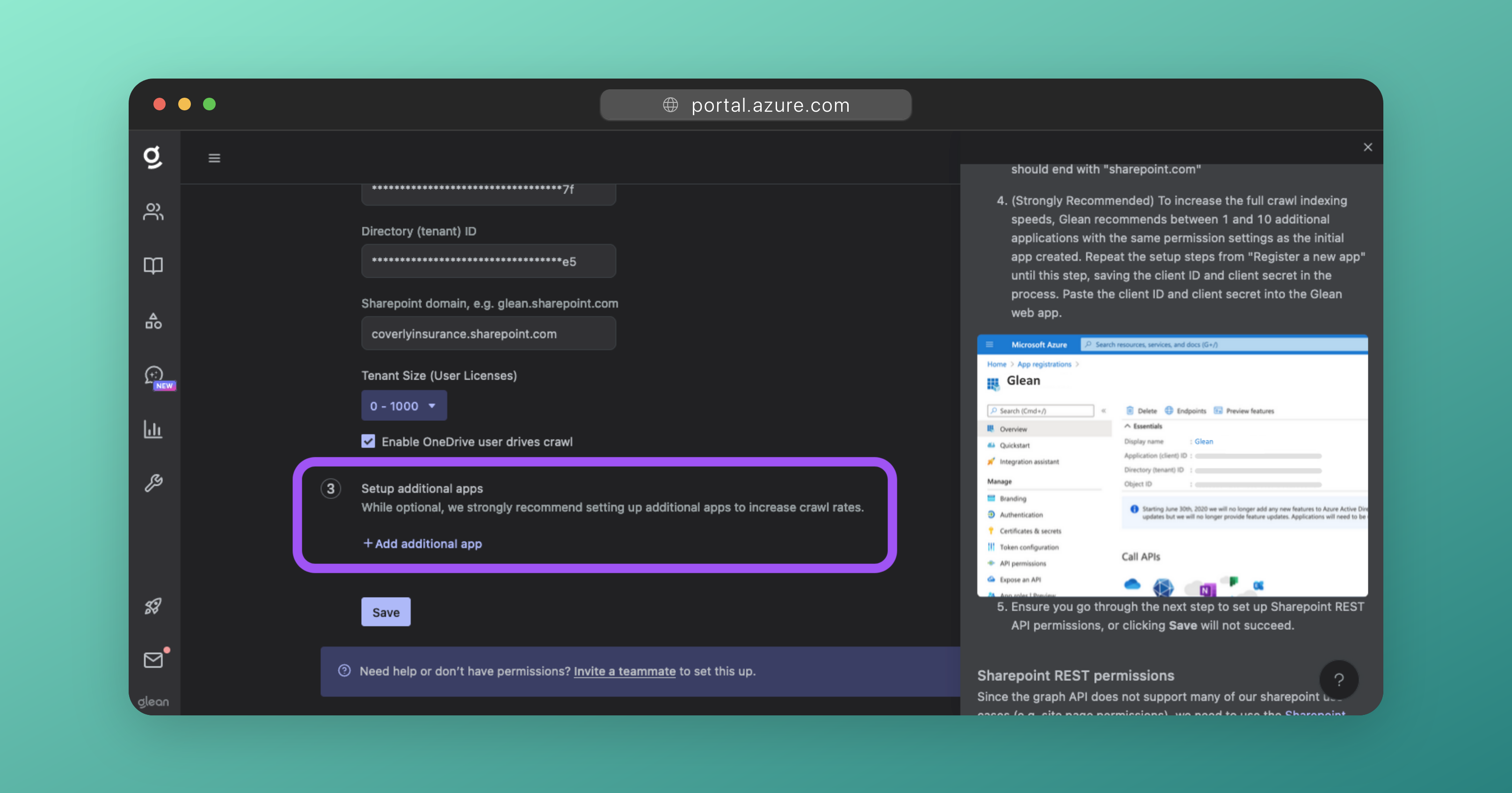
In the Glean UI, under #3 Setup additional apps, click the Add additional app button. This will prompt you to add in another Application (client) ID and Secret.
-
For each additional app you wish to add, follow the steps above again:
- Create a new App Registration (eg:
Glean SharePoint Crawler - 2,Glean SharePoint Crawler - 3, etc). - Add the same permissions as the parent app (indicated above).
- Generate and copy a Client Secret key.
- Copy the Application (client) ID.
- Paste both the Client Secret key and Application (client) ID into the Glean UI.
- Create a new App Registration (eg:
-
Once you have finished adding the details for the additional apps, DO NOT click Save just yet. Instead, proceed below.
8 - Configure Graph API Read Permissions
Even though the Sites.Selected application permission is assigned to each of the Glean SharePoint apps created, these apps still can't access any target sites yet.
Read permission for the Graph API needs to be specifically granted to each individual site that you want Glean to crawl. This process can be completed via an Entra ID Global Admin using PowerShell, or using the Graph API and another app with the Sites.FullControl.All permission.
Error prevention
You will need to follow this section for all of:
- Each of the additional apps created above, AND
- Each of the sites you wish to crawl.
Failing to action these steps will cause crawling to fail.
Requirements
-
The Client ID for each of the Glean SharePoint App Registrations created in Entra ID/Azure AD.
-
The Name of each site that you wish to crawl with Glean.
-
PowerShell 7.2 or above.
- Note: The default version that comes with Windows 10 and 11 is PowerShell 5.1. You can install PowerShell 7.X alongside PowerShell 5.1.
- To check your PowerShell version, run the
$PSVersionTablecommand in PowerShell and review the version next to thePSVersionfield. - Microsoft have installation (and migration) instructions located here.
-
PnP.PowerShell module v2.3.0 or above.
- You can install the required modules using the commands below:
Install-Module -Name PnP.PowerShell -RequiredVersion 2.4.0 Install-Module -Name Microsoft.Online.SharePoint.PowerShell - You can check the latest stable version of the PnP.PowerShell module here.
- You can install the required modules using the commands below:
Process
-
Connect to the site collection:
Connect-PnPOnline -Url https://<sharepoint_domain>.sharepoint.com/sites/<site_name> -InteractiveThe
-Interactiveflag will open a browser window for you to authenticate using SSO. This allows MFA to be used (if configured). -
Grant
Readpermissions for the site collection:Grant-PnpAzureADAppSitePermission -AppId <client_id> -Site https://<sharepoint_domain>.sharepoint.com/sites/<site_name> -Permissions Read -
Repeat Step 2 for the Client ID of each Glean-SharePoint app created in Entra ID.
-
Repeat Steps 2 & 3 for each site collection URL that you want Glean to crawl.
Requirements
-
The Client ID and Name for each of the Glean-SharePoint App Registrations created in EntraID/Azure AD.
-
The Name of each site that you wish to crawl with Glean.
-
Administrator access to Microsoft Graph Explorer.
-
Graph Explorer must have consented
Sites.FullControl.Allpermission.Sites.FullControl.Allis the permission of least privilege to be able to modify site permissions via the Graph API.
Process
-
Open Microsoft Graph Explorer and sign-in to your corporate Microsoft account: https://developer.microsoft.com/en-us/graph/graph-explorer
-
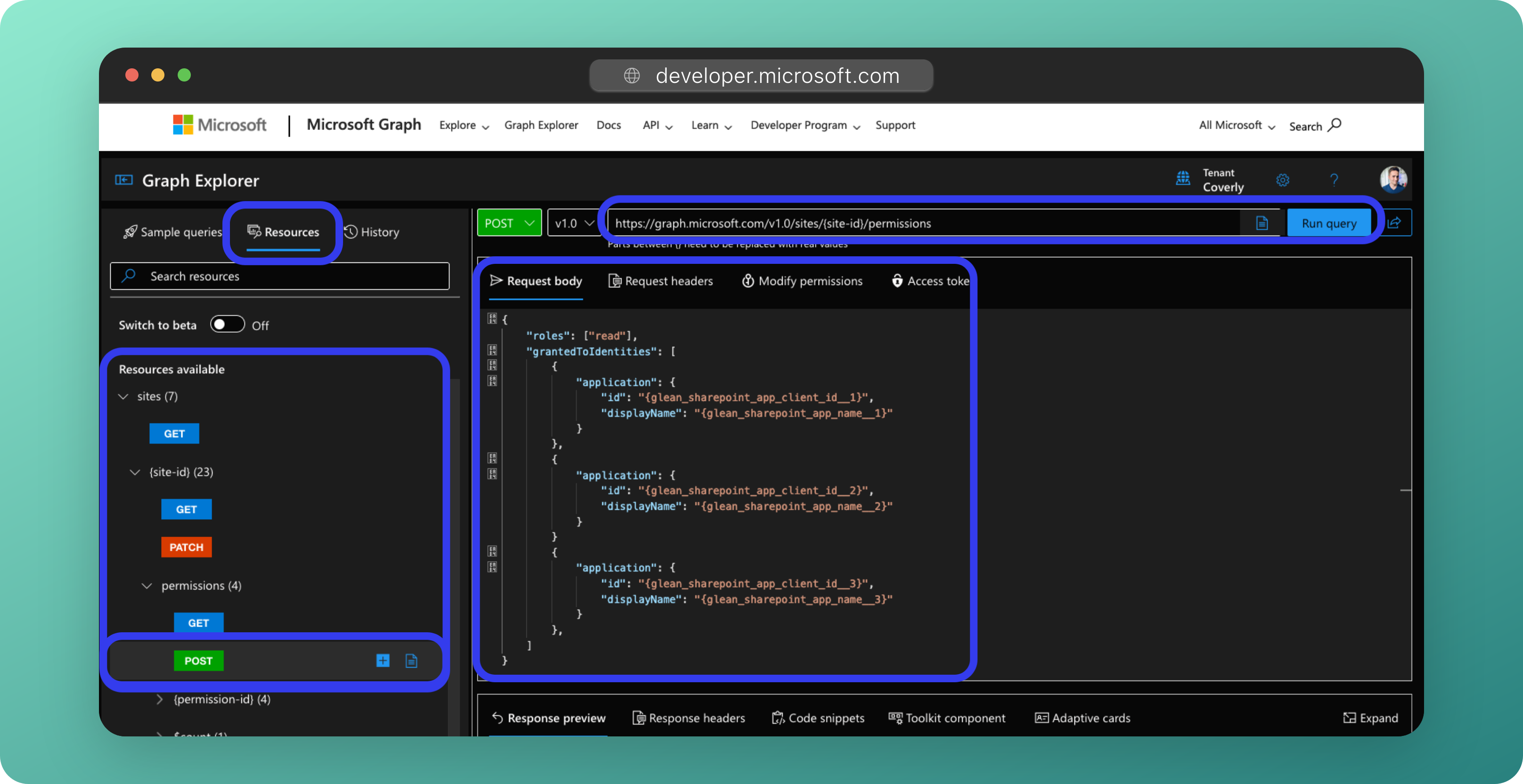
Click the Resources tab at the top left, and navigate to sites > {site_id} > permissions > POST.
- Click here for a direct link to the resource.
-
You should see the following URI in the query field:
https://graph.microsoft.com/v1.0/sites/{site-id}/permissions -
Make sure you have selected the POST option. Do not select the GET option.
-
Set the
{site-id}to the name of the target site you wish to crawl. -
Paste the following under the Request body tab:
{ "roles": ["read"], "grantedToIdentities": [ { "application": { "id": "{glean_sharepoint_app_client_id__1}", "displayName": "{glean_sharepoint_app_name__1}" } }, { "application": { "id": "{glean_sharepoint_app_client_id__2}", "displayName": "{glean_sharepoint_app_name__2}" } }, { "application": { "id": "{glean_sharepoint_app_client_id__3}", "displayName": "{glean_sharepoint_app_name__3}" } }, { "application": { "id": "{glean_sharepoint_app_client_id__4}", "displayName": "{glean_sharepoint_app_name__4}" } }, { "application": { "id": "{glean_sharepoint_app_client_id__5}", "displayName": "{glean_sharepoint_app_name__5}" } } ] } -
For each of your Glean-SharePoint App Registrations created in Entra ID, modify the above to replace:
{glean_sharepoint_app_client_id__X}with the Application (client) ID of the app.- E.g.
c60461a8-61b4-47fd-a90e-eb7f92d9127f
- E.g.
{glean_sharepoint_app_name__X}with the display name of the app.- E.g.
Glean SharePoint Crawler - X
- E.g.
- You can add or remove entries under the
grantedToIdentitiesstanza to match the number of App Registrations created.
-
Click Run query to submit and apply the authorization.
-
Repeat Steps 3-6 for each site that you want Glean to crawl.
Troubleshooting: Forbidden - 403
Forbidden - 403 - XX ms. Either the signed-in user does not have sufficient privileges, or you need to consent to one of the permissions on the Modify permissions tab
This issue is due to one of the following:
- Your user account does not the role of Cloud Admin or Global Admin required.
- The Graph Explorer app has not been granted permissions to be able to modify the permissions endpoint via the Graph API.
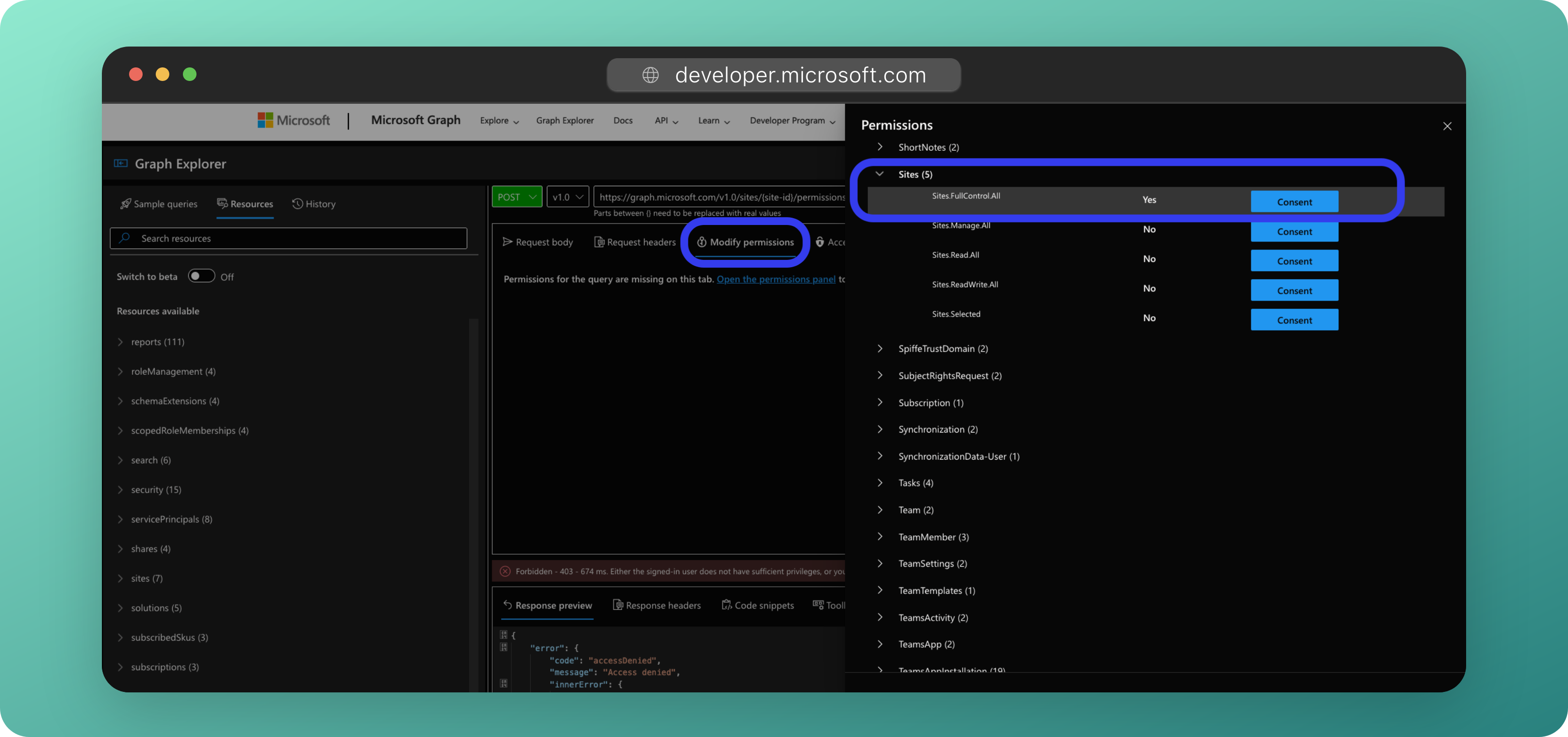
For the latter, you must ensure that the Microsoft Graph Explorer app has been granted Application permissions for Sites.FullControl.All. This is the permission of least privilege to modify site permissions via the Graph API.
- Click the Modify permissions tab, then click the Open the permissions panel link.
- Open the Sites permission list and consent to
Sites.FullControl.All
Warning
Ensure you have approval and know what you are doing before granting this permission to Graph Explorer.
Troubleshooting: Bad Request - 400
The Graph API returned a HTTP 400 error. This is likely because:
- An Application ID and/or Display Name for one or more of the specified apps is incorrect.
- The request JSON is malformed or contains invalid characters that cannot be parsed.
Check that each of the Application IDs and Display Names are correct. jsonformatter.org can be used to validate that your JSON is formatted correctly.
Requirements
-
A temporary App Registration in Entra ID that has the
Sites.FullControl.Allpermission that has been granted admin consent.- This app will allow you to assign the
Readpermission to your selected sites for each Glean-SharePoint App Registration. - You will need the Client ID, Directory ID, and Client Secret for this app.
Sites.FullControl.Allis the permission of least privilege to be able to modify site permissions via the Graph API.
- This app will allow you to assign the
-
The Client ID and Name for each of the Glean-SharePoint App Registrations created in EntraID/Azure AD.
-
A method of submitting API calls to the Graph API, e.g.
curlor the Postman app.
Process
-
Create an OAuth2 token for the temporary app that has
Sites.FullControl.Allpermissions:curl -X POST \ 'https://login.microsoftonline.com/{tenant_id}/oauth2/v2.0/token' \ -H 'Content-Type: application/x-www-form-urlencoded' \ -d 'client_id={client_id}' \ -d 'scope=https://graph.microsoft.com/.default' \ -d 'client_secret={client_secret}' \ -d 'grant_type=client_credentials'- Substitute
{tenant_id},{client_id}, and {client_secret} with their associated values. - Copy the access_token from the response. You will need this in the following steps.
- Substitute
-
Grant
readpermissions for the site:curl -X POST \ 'https://graph.microsoft.com/v1.0/sites/{site_id}/permissions' \ -H 'Authorization: Bearer {access_token}' \ -H 'Content-Type: application/json' \ -d '{ "roles": ["read"], "grantedToIdentities": [ { "application": { "id": "{glean_sharepoint_app_client_id__1}", "displayName": "{glean_sharepoint_app_name__1}" } }, { "application": { "id": "{glean_sharepoint_app_client_id__2}", "displayName": "{glean_sharepoint_app_name__2}" } }, { "application": { "id": "{glean_sharepoint_app_client_id__3}", "displayName": "{glean_sharepoint_app_name__3}" } }, { "application": { "id": "{glean_sharepoint_app_client_id__4}", "displayName": "{glean_sharepoint_app_name__4}" } }, { "application": { "id": "{glean_sharepoint_app_client_id__5}", "displayName": "{glean_sharepoint_app_name__5}" } } ] }'{site_id}is the name of the site that you are granting Glean read permissions to.{access_token}is the OAuth2 token granted in Step 1.{glean_sharepoint_app_client_id__X}is the Application (client) ID of the Glean-SharePoint App Registration you are authorizing.{glean_sharepoint_app_name__X}is the display name of the Glean-SharePoint App Registration you are authorizing, e.g.Glean SharePoint Crawler - 1,Glean SharePoint Crawler - 2, etc.- You can add or remove entries under the
grantedToIdentitiesstanza to match the number of App Registrations created.
Success
HTTP 201 will be returned if the apps were successfully granted read permissions for the site.
-
Repeat Step 2 for each site that you want Glean to crawl.
9 - Configure SharePoint REST API Permissions
Some SharePoint data required by Glean (e.g. permissions for site collections) is not obtainable from the Graph API. Instead, Glean must use the SharePoint REST API endpoints to fetch this data.
Error prevention
You will need to follow this section to enable the SharePoint REST API permissions for all of:
- Each of the additional apps created above, AND
- Each of the sites you wish to crawl.
Failing to action these steps will cause crawling to fail.
-
Navigate to the permission request page for the site:
https://<sharepoint_domain>.sharepoint.com/sites/<site_name>/_layouts/15/appinv.aspx- E.g. If your SharePoint domain is
company.sharepoint.com, and the site you are applying the permission to is calledmysite, navigate to:https://company.sharepoint.com/sites/mysite/_layouts/15/appinv.aspx
- E.g. If your SharePoint domain is
-
For each Glean-SharePoint app created in Entra ID (the parent app and all additional apps), complete the following:
-
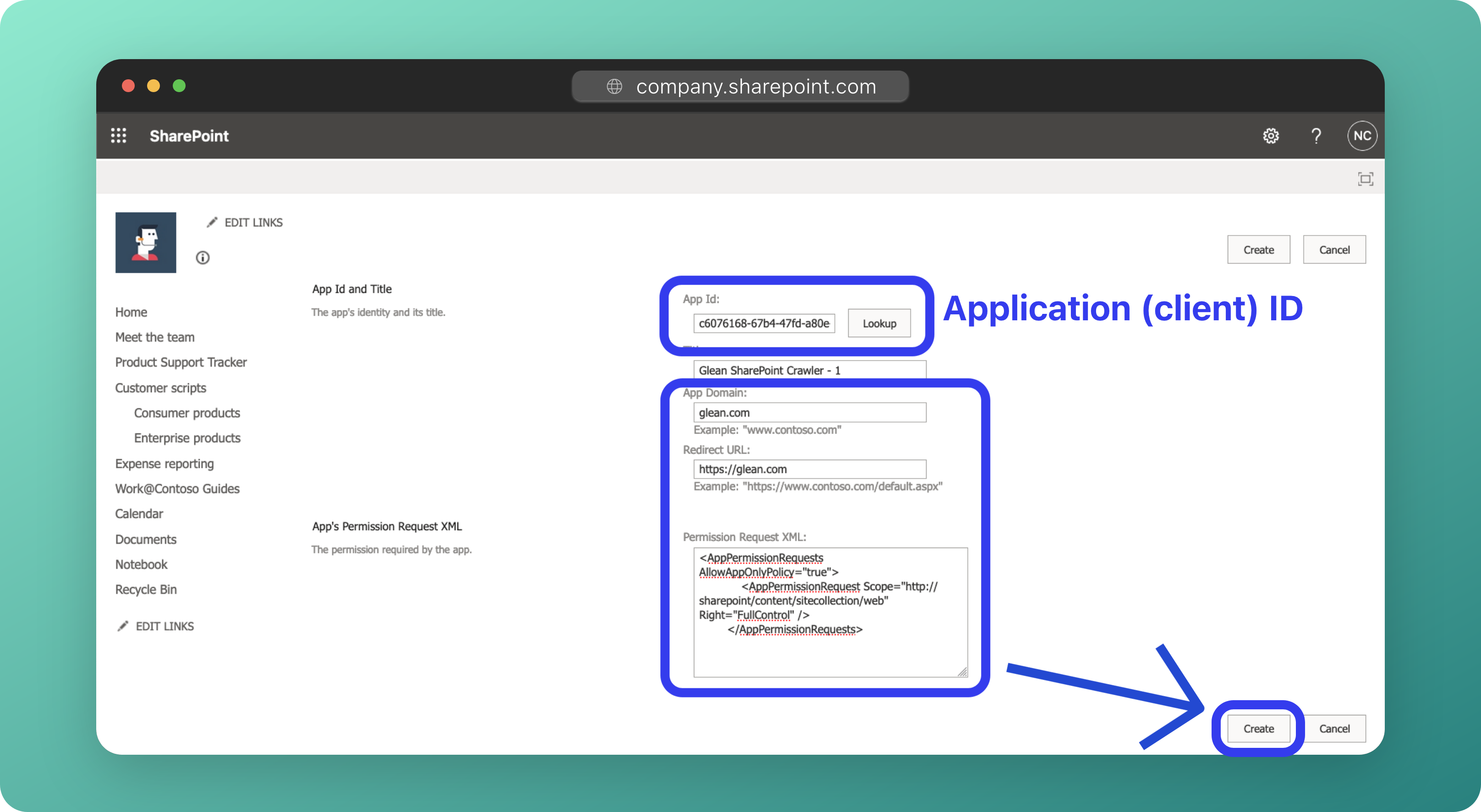
For App Id, paste in the Application (client) ID value and click the Lookup button. The Title field will automatically populate with the name of the associated App Registration (e.g.
Glean SharePoint Crawler,Glean SharePoint Crawler - 2, etc) -
For App Domain enter:
glean.com -
For Redirect URL enter:
https://glean.com -
In the Permission Request XML field, paste the following:
<AppPermissionRequests AllowAppOnlyPolicy="true"> <AppPermissionRequest Scope="http://sharepoint/content/sitecollection/web" Right="FullControl" /> </AppPermissionRequests> -
Click Create to apply the permissions.
-
Repeat steps a-e for each additional app.
-
Heads Up!
You can check which of the Glean-SharePoint apps have been authorized for a specific site by navigating to:
https://<sharepoint_domain>.sharepoint.com/sites/<site_name>/_layouts/15/appprincipals.aspx?Scope=Web
Why is the FullControl permission required?
FullControl permissions are required to fetch role assignments and access permissions for the site pages and associated web components of each site. The Graph API only exposes access permissions for Document Library items, hence it cannot be used to obtain the information needed by Glean.
The SharePoint REST API endpoint responsible for returning this data returns a HTTP 403 Forbidden response when the API is queried with any other permission other than FullControl (i.e. Read permission).
Glean does not perform any write actions to your SharePoint tenant. Only read actions (i.e. HTTP GET) are performed.
For more information, please see this StackOverflow post.
What alternatives are there to FullControl?
Unfortunately, there are no alternatives to FullControl at this time. Some of the data required by Glean can only be obtained using:
- Endpoints only present in v1 of the SharePoint REST API, and
- SharePoint API v1 endpoints that require
FullControlto return data as the permission of least priviledge.
If either of these change in the future, the use of FullControl will no longer be required, and Glean will deprecate its use.
For customers that have a Glean cloud-prem deployment, you can implement WAF rules to restrict the Glean SharePoint crawler to only be able to perform HTTP GET (i.e. read) requests towards the SharePoint REST API endpoints documented here.
More information:
10 - Validate Settings
Back in the Glean UI, click Save. Glean will now validate that the required permissions for each Glean-SharePoint app have been granted.
Error: Unable to fetch O365 SharePoint site groups.
Depending upon the age of your SharePoint Online tenant, you might receive the following error:
Unable to fetch O365 Sharepoint site groups. Please check that the sharepoint/content/sitecollection scopes are enabled with FullControl for Sharepoint REST API.
This is normal!
If your SharePoint Online tenant is newer (typically 2020 onwards), then the method of authenticating to the SharePoint REST API (Azure Access Control Services (ACS)) is disabled by default. This was enabled by default in older tenants to assist with migration from SharePoint on-premise.
To use the SharePoint REST API, you need to enable ACS. You can enable ACS using PowerShell:
-
Install the required modules (PowerShell 7.2+ is required):
Install-Module -Name PnP.PowerShell -RequiredVersion 2.4.0 Install-Module -Name Microsoft.Online.SharePoint.PowerShell- You can check the latest stable version of the PnP.PowerShell module here.
- The default version of PowerShell that comes with Windows 10 and 11 is PowerShell 5.1. You can install PowerShell 7.X alongside PowerShell 5.1.
- To check your PowerShell version, run the
$PSVersionTablecommand in PowerShell and review the version next to thePSVersionfield. - Microsoft have installation (and migration) instructions located here.
-
Connect to your SharePoint domain:
Connect-PnPOnline -Url https://<sharepointdomain>-admin.sharepoint.com -Interactive- The
-Interactiveflag will open a browser window for you to authenticate using SSO. This allows MFA to be used.
- The
-
Enable ACS:
Set-PnPTenant -DisableCustomAppAuthentication $false-
You can check the status of this flag at anytime by using the
Get-PnPTenantcommand:PS /Users/username> Get-PnPTenant [...snip...] DisableCustomAppAuthentication : False [...snip...]
-
-
Attempt to click Save again in the Glean UI. Your settings should now validate successfully. DO NOT start crawling just yet.
11 - List the Site URLs to be Crawled
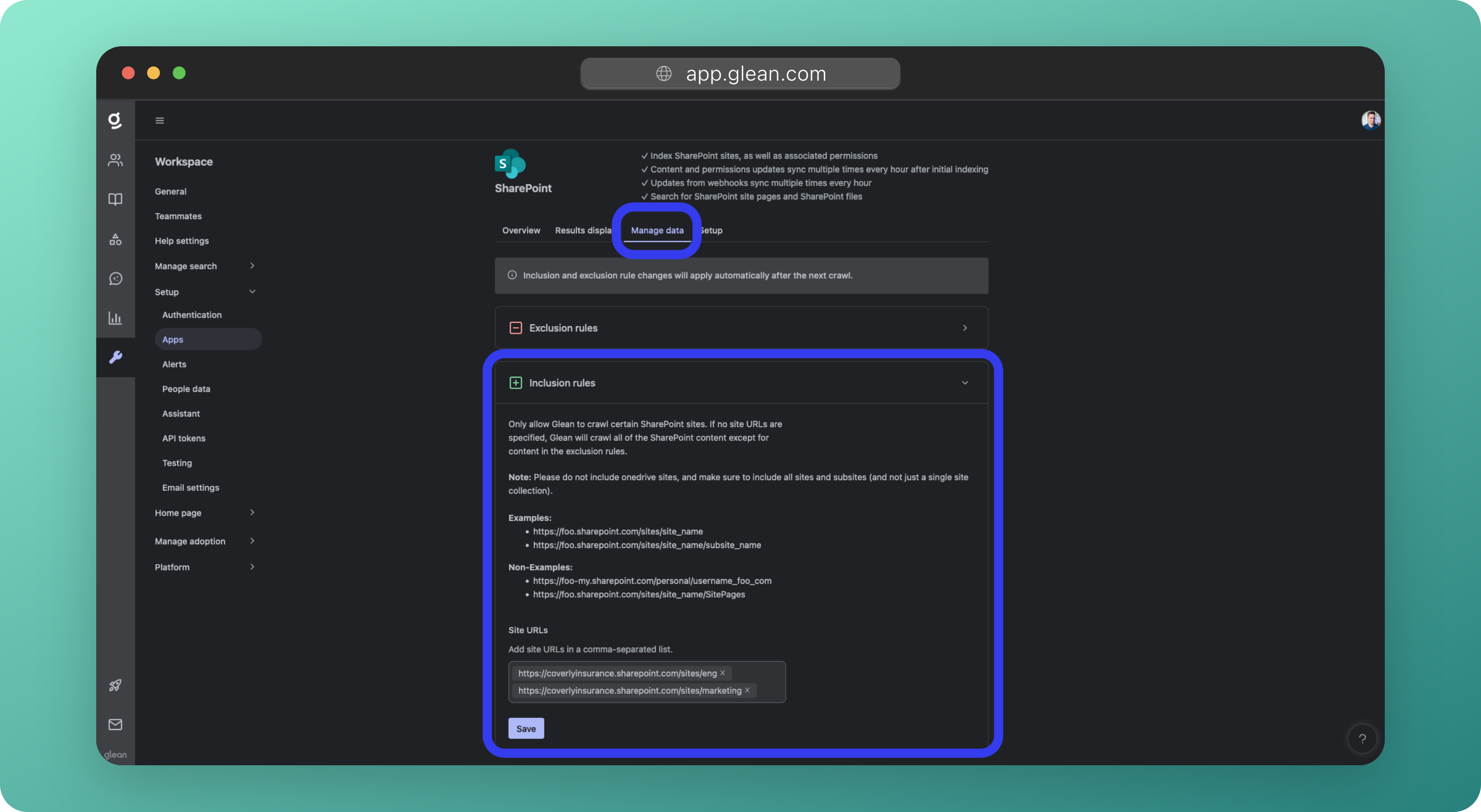
Glean cannot automatically determine which sites need to be crawled using the Sites.Selected permission, hence you need to explicitly provide each site URL to Glean via the Manage Data tab.
- Navigate to SharePoint > Manage Data > Inclusion rules
-
Provide a comma-separated list of each Site URL to be crawled.
- This can also just be the subsites of the site collections with permissions.
- If a site collection and all associated subsites should be crawled, provide all the urls explicitly in the inclusion rules list.
12 - Notify Glean that Sites.Selected is being used
Heads Up!
This step will be removed in a future update of the Glean platform.
Glean needs to explicitly configure your deployment's SharePoint crawler to leverage the Sites.Selected permission.
You must notify your Glean engineer or Glean support that you will be using Sites.Selected so that the configuration can be applied.
Failure to do this step will cause crawling to fail.
13 - Start Crawling
Click on the Overview tab, followed by the Start Crawling button to begin indexing your organization's SharePoint content.
Success
You have successfully connected SharePoint and OneDrive to Glean using Sites.Selected!
You can check the status of your crawl by navigating to Workspace Settings > Setup > Apps, and examining the Items Indexed, Crawler, and Crawling status fields.
Depending on the amount of content in your SharePoint and OneDrive environments, crawling can take anywhere from 24 hours to 1 week to fully complete.